

Web Admin
The Web Admin is the admin's console in a browser. With it you can see everything stored in the database, add and manage users, change settings, take backups, and stop or restart the server. DDBD serves it itself, on the same address and port as the API, so there is nothing else to install.
It is for the admin only. Apps, scripts and AI agents never use it: they sign in as users and go through the API.
Opening it
The Web Admin is off until it has a password. On the server, as the operating system user who runs DDBD, set one with the Admin Shell:
$ ddbd admin --data ~/ddbd-data web-passwordNew web admin password (shown as you type, at least 8 characters): ...
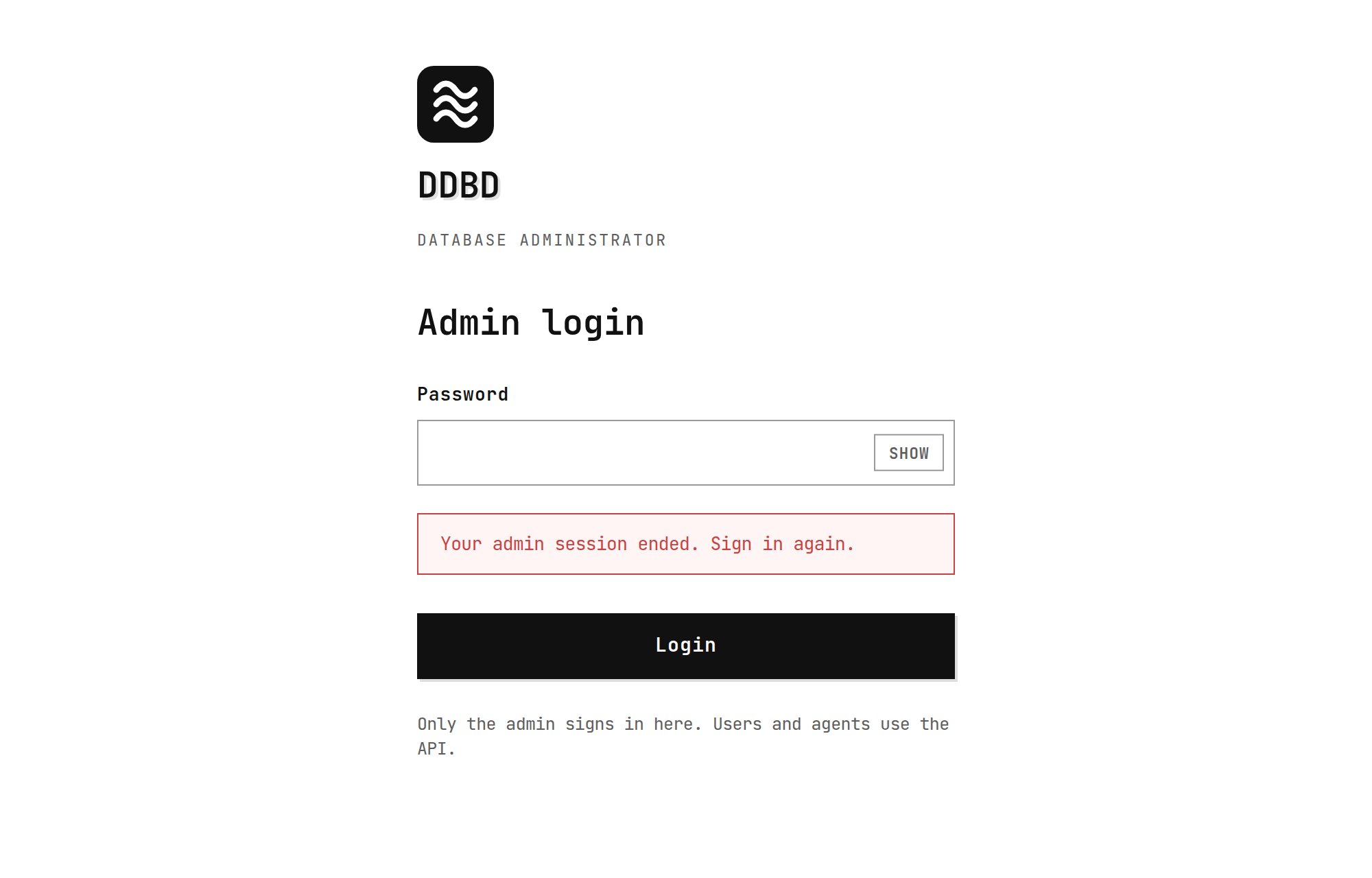
Web admin is on. Open the server address in a browser and sign in with this password. Existing web admin sessions were signed out.Then open the server's address in a browser: http://localhost:7070/ on the server itself, or the HTTPS address that leads to your server. The login page asks for that password:
- Run
web-passwordagain to change the password, orweb-password offto turn the Web Admin off. Either signs out everyone signed in to it. The password can only be set from the server, never from the Web Admin itself. - A Web Admin session ends after 60 minutes without use (the
admin_session_idle_minutessetting), on [Logout], when the password changes, and when the server restarts. - Wrong passwords slow down further attempts, as they do for users.
- On plain HTTP the password travels unencrypted. Open the Web Admin on the server itself, or through HTTPS.
The screens
The menu on the left (behind the menu button on a phone) leads to each screen. The top bar has the light/dark switch and [Logout].
Overview
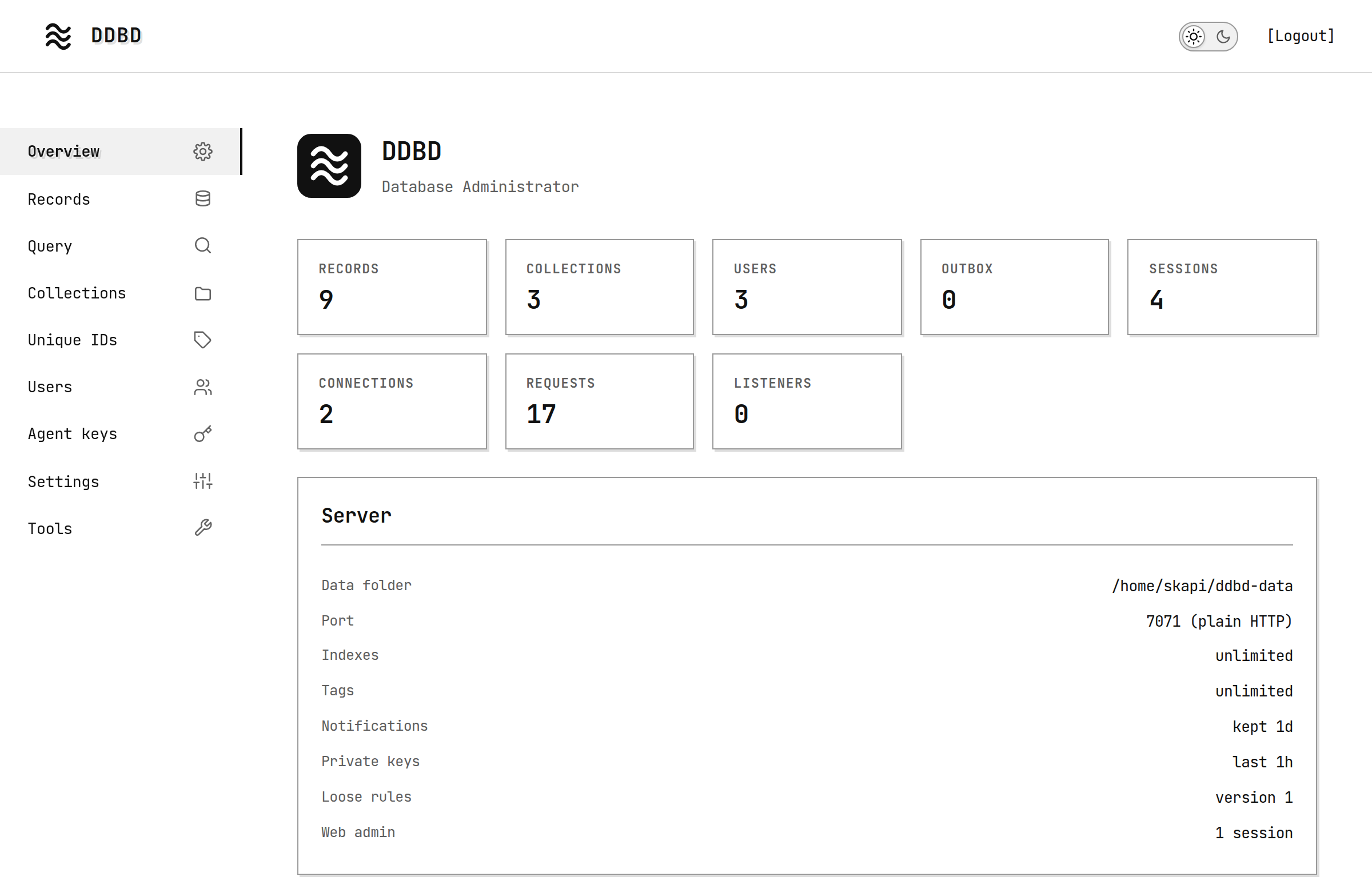
The first screen after signing in. It shows how the server is doing.
| card | what it shows |
|---|---|
| Records, Collections, Users | how many there are in the database |
| Outbox | background work waiting to be done, such as feeds and notifications for subscribers; it is normally 0 |
| Sessions | user sessions that are signed in |
| Connections | connections open to the server right now |
| Requests | requests answered since the server started |
| Listeners | open notification streams (listen) |
| Server | the data folder, the port and whether it is plain HTTP or HTTPS, the index and tag limits, how long notifications and private access keys last, and how many Web Admin sessions are open |
The counts refresh every 10 seconds.
The log
Below the cards is the server log, live: the same lines the server prints in its terminal, one per request.
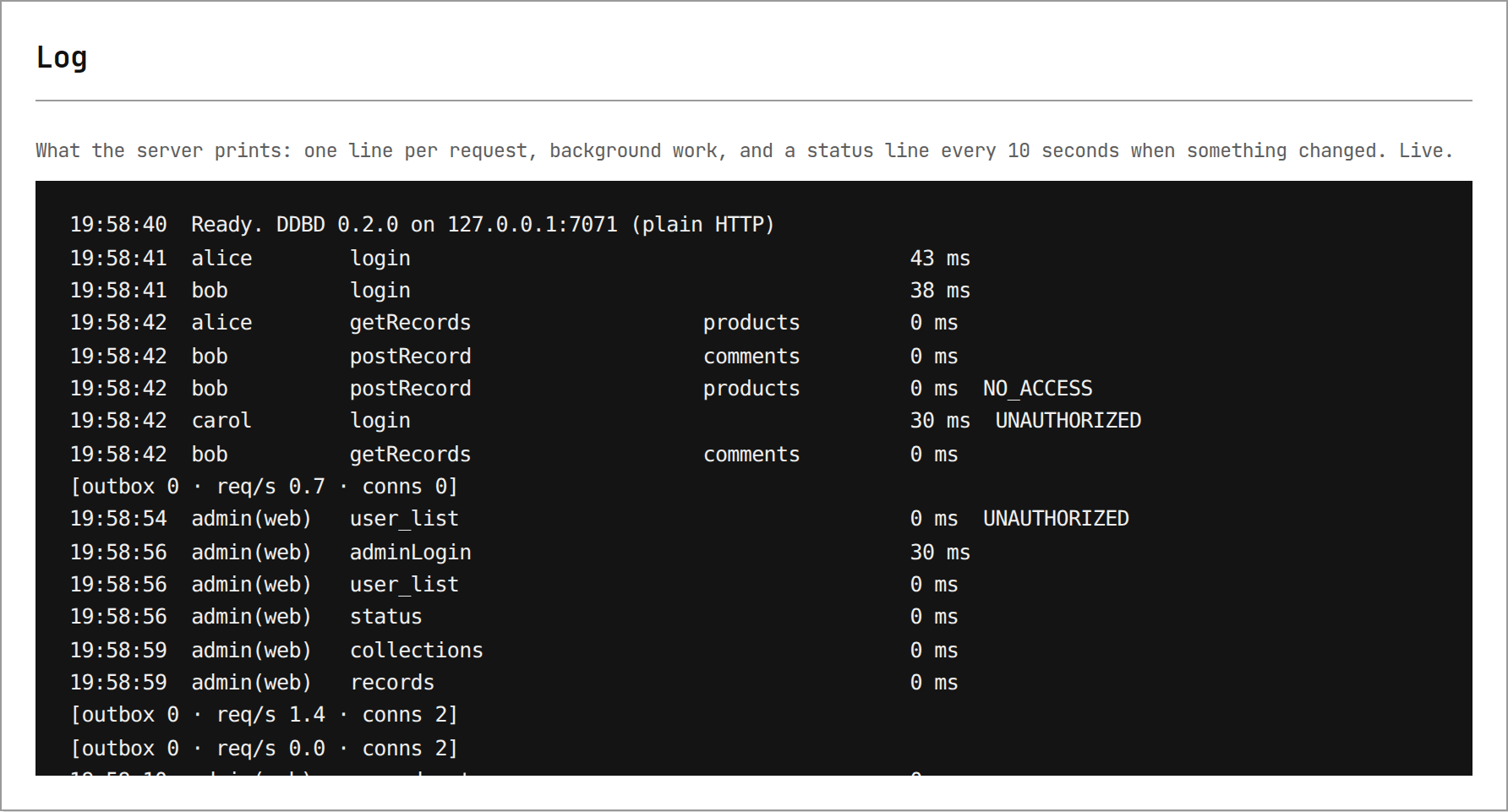
Each request line reads, from left to right:
| column | example | meaning |
|---|---|---|
| time | 22:04:02 | when the request came in |
| who | alice, alice/shop-bot, admin(web) | the user; the user and the agent key's name for an agent key; admin(web) for the Web Admin; - when nobody is signed in |
| what | postRecord | the API method, or what the Web Admin asked for |
| collection | products | the collection the request touched, if any |
| time taken | 0 ms | how long the server took to answer |
| error | NO_ACCESS | why the request was refused; empty when it succeeded |
In the example, bob (level 05) tried to save a record at level 10 and was refused with NO_ACCESS, and someone tried to sign in as carol with a wrong password (UNAUTHORIZED). Lines in brackets, such as [outbox 0 · req/s 1.8 · conns 3], are the status line: background work waiting, requests per second and open connections, printed when they change. The server keeps the last 1000 lines for this card, and only until it stops; to keep a log file, see Reading the log.
Records
Every record in the database, newest first, private ones included.
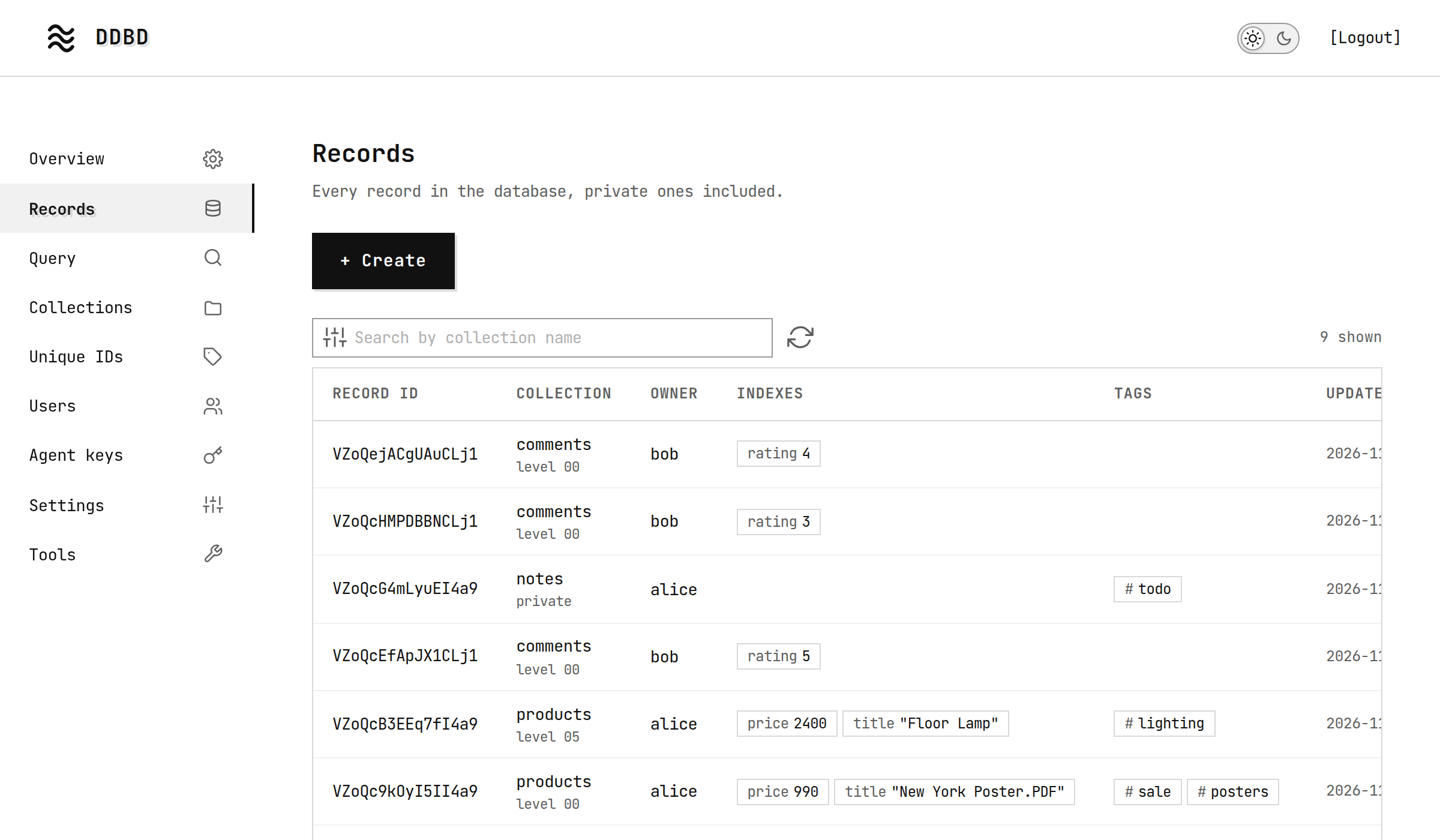
- Type a collection name in the search box to narrow the list. The button at the left of the box adds the owner, the level, the order and the page size.
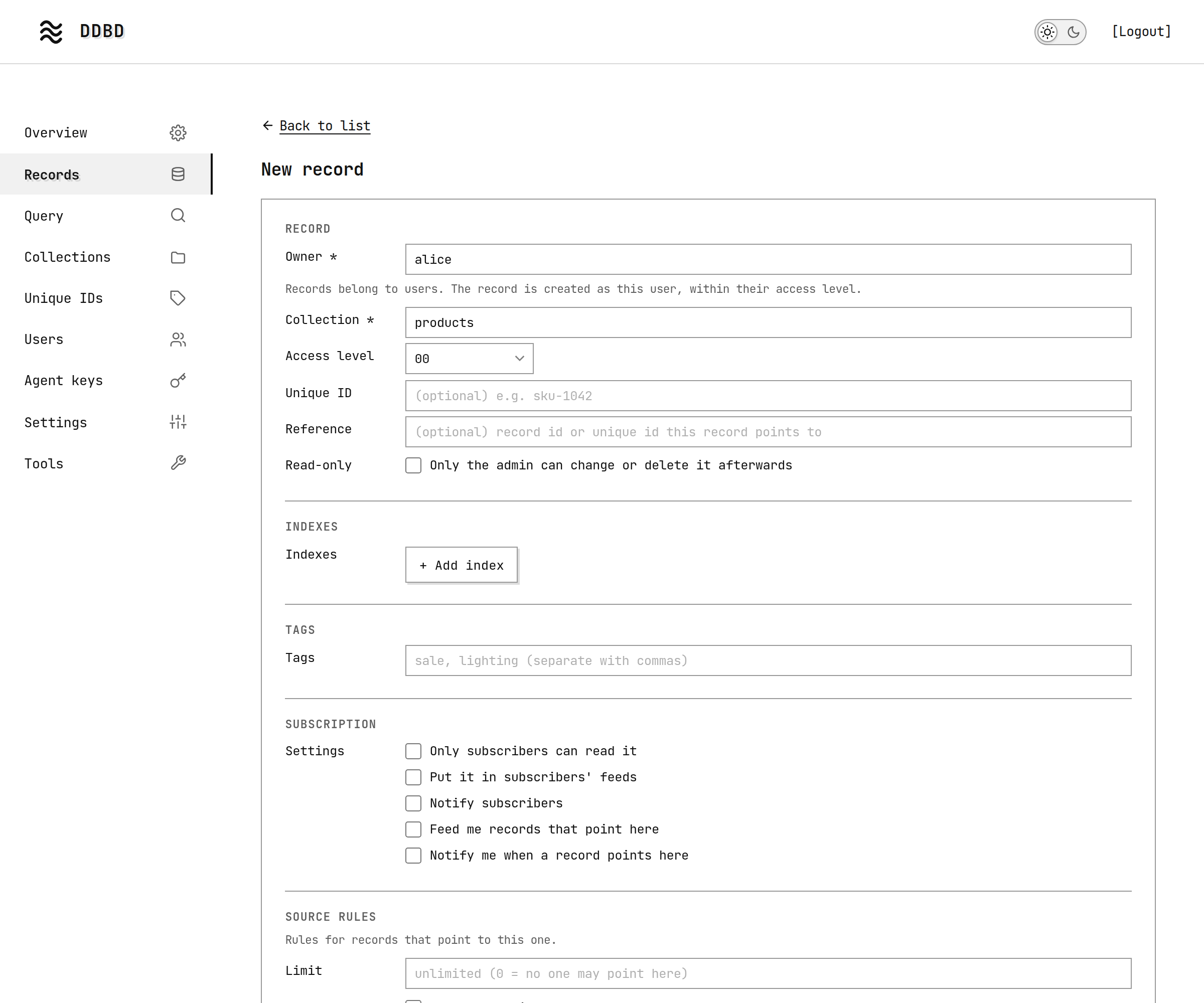
- + Create saves a new record. Records belong to users, so the form asks which user it is saved as, and that user's access level applies.
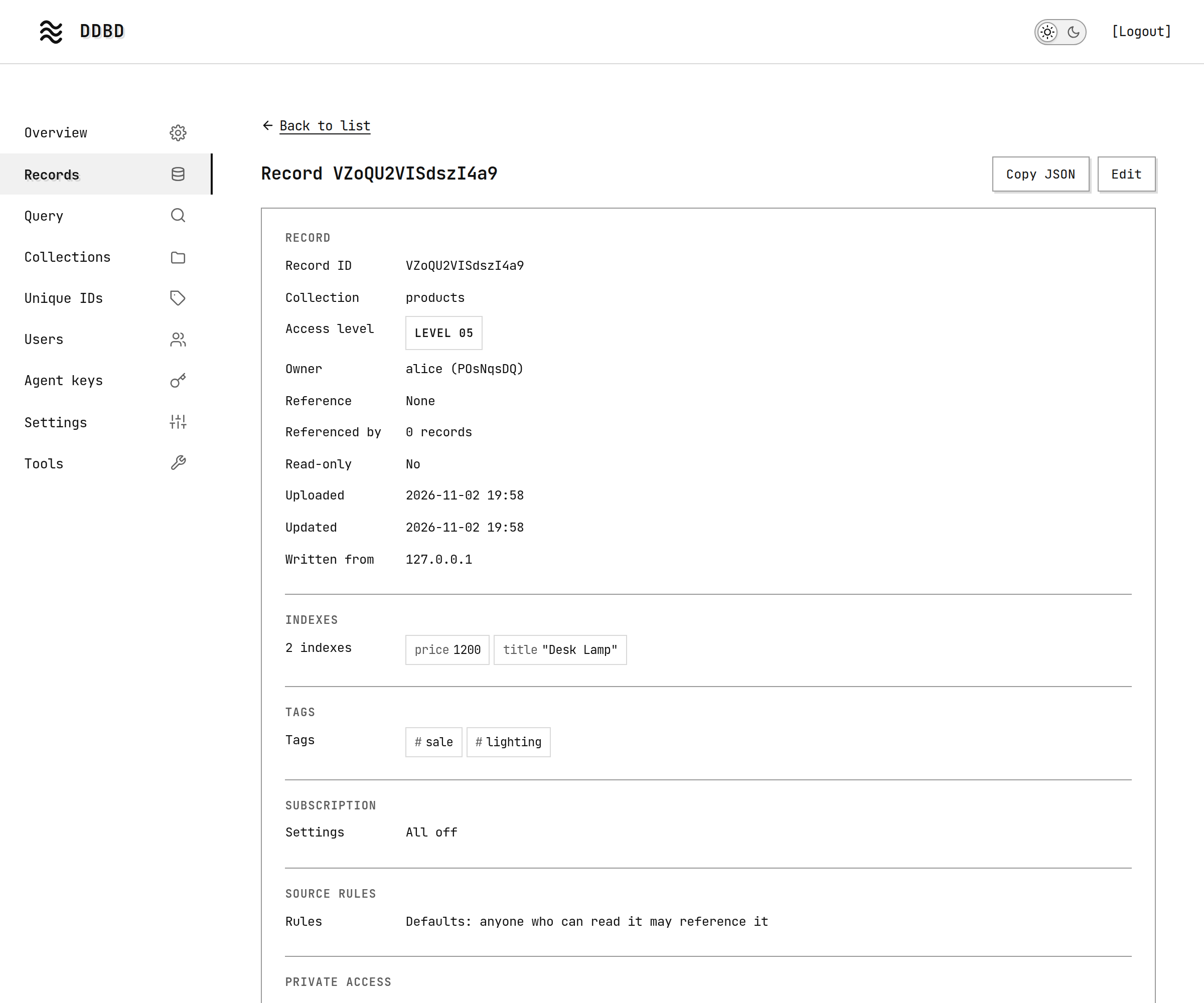
Click a record to open it. You see every setting, its grants and its data, and you can copy it as JSON, edit it or delete it:
Query
Runs a getRecords query with admin rights, so it finds records whatever their level. Fill in the Form tab, or write the request body on the JSON tab. The form shows the request it builds, which you can copy into your own code.
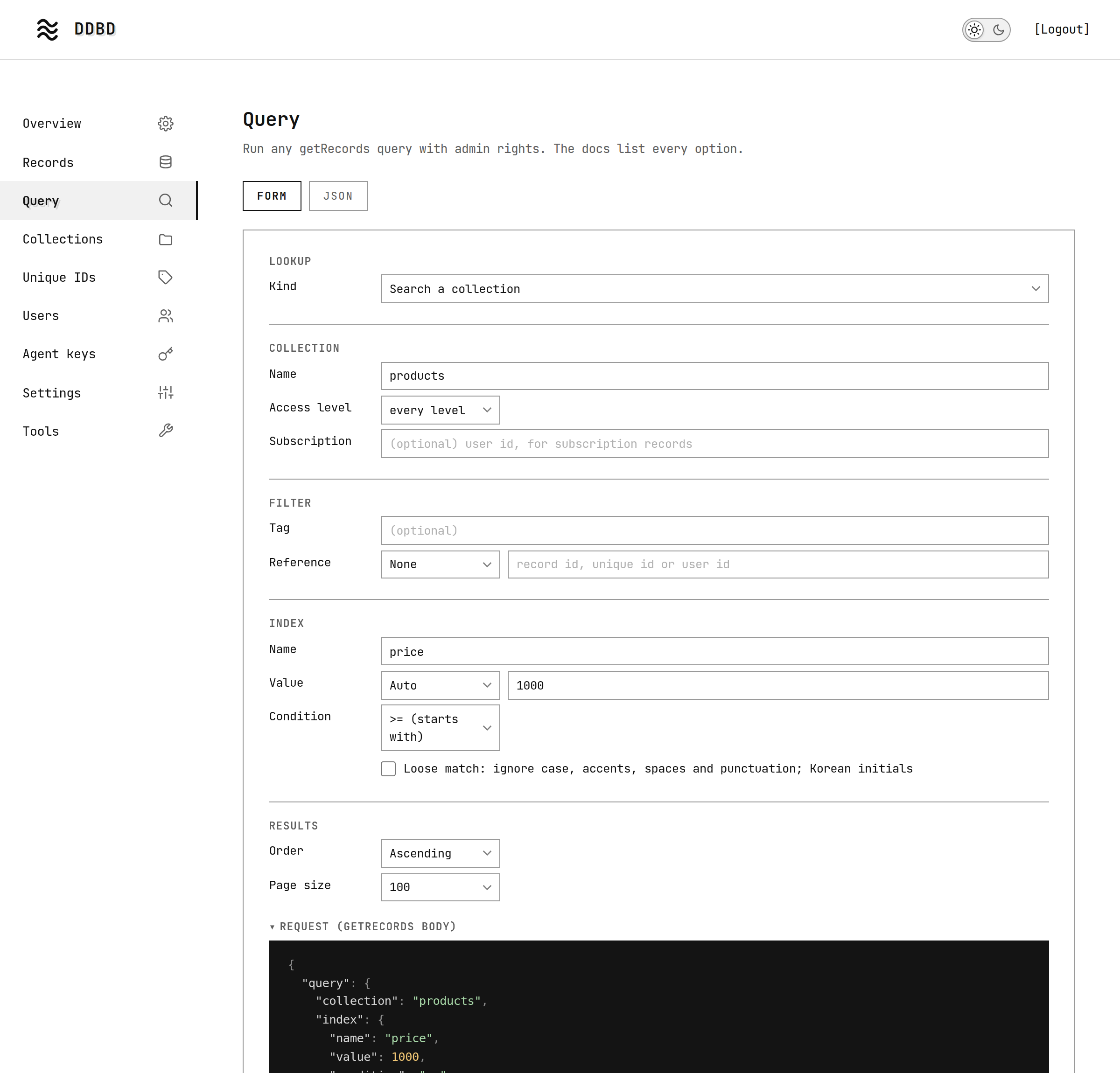
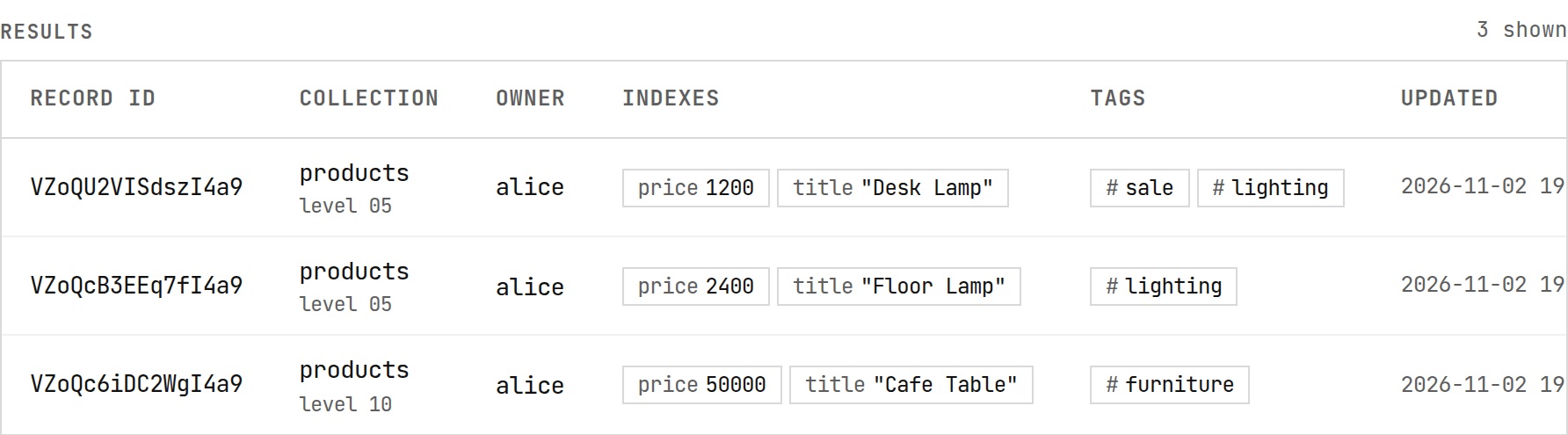
Run query lists the matching records. This query asked for every product with a price of 1000 or more:
Collections
Every collection, with its number of records, its size, and how many records it has at each access level.
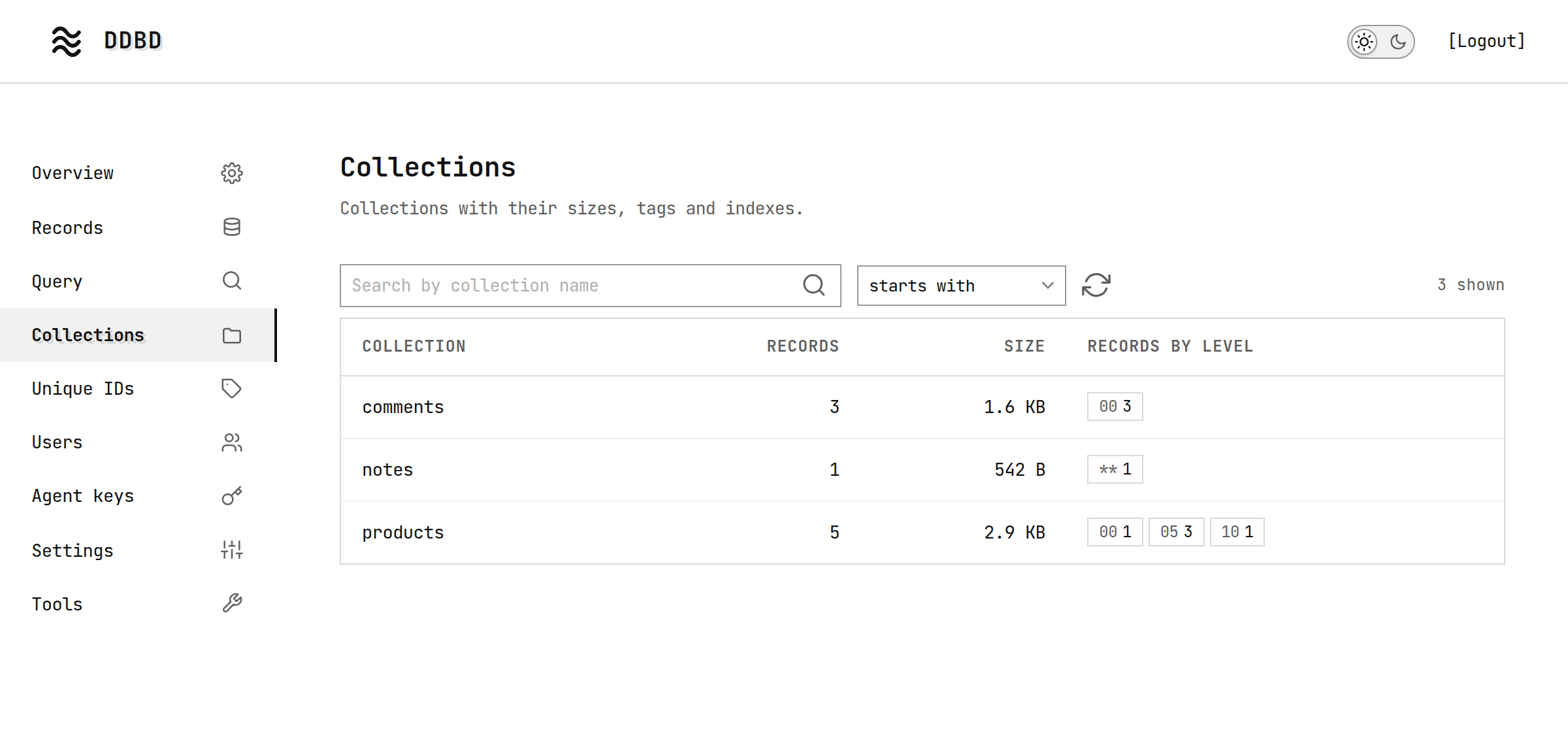
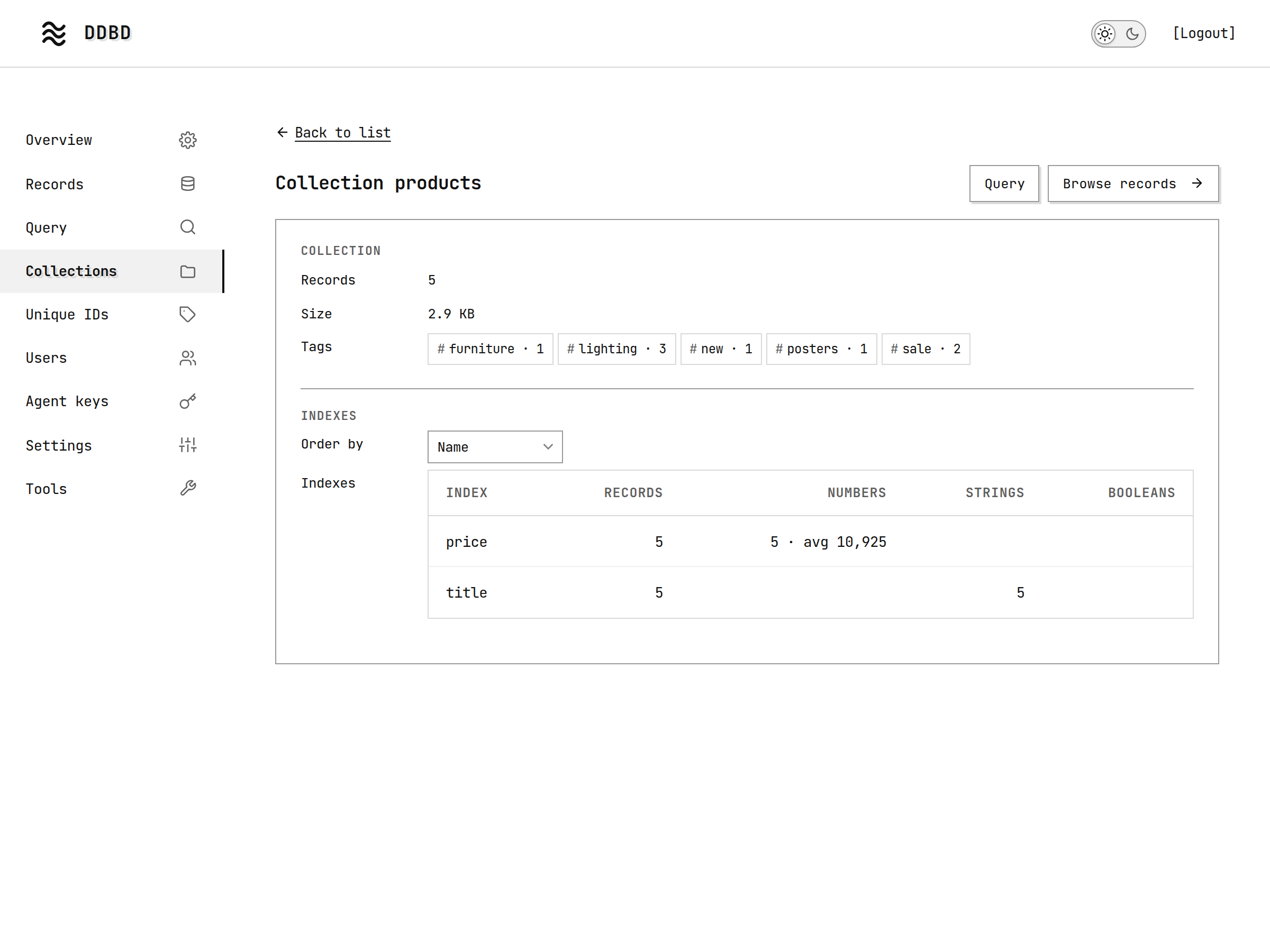
Click a collection to see its tags and its indexes, with how many records use each. Query and Browse records open the collection on those screens.
Unique IDs
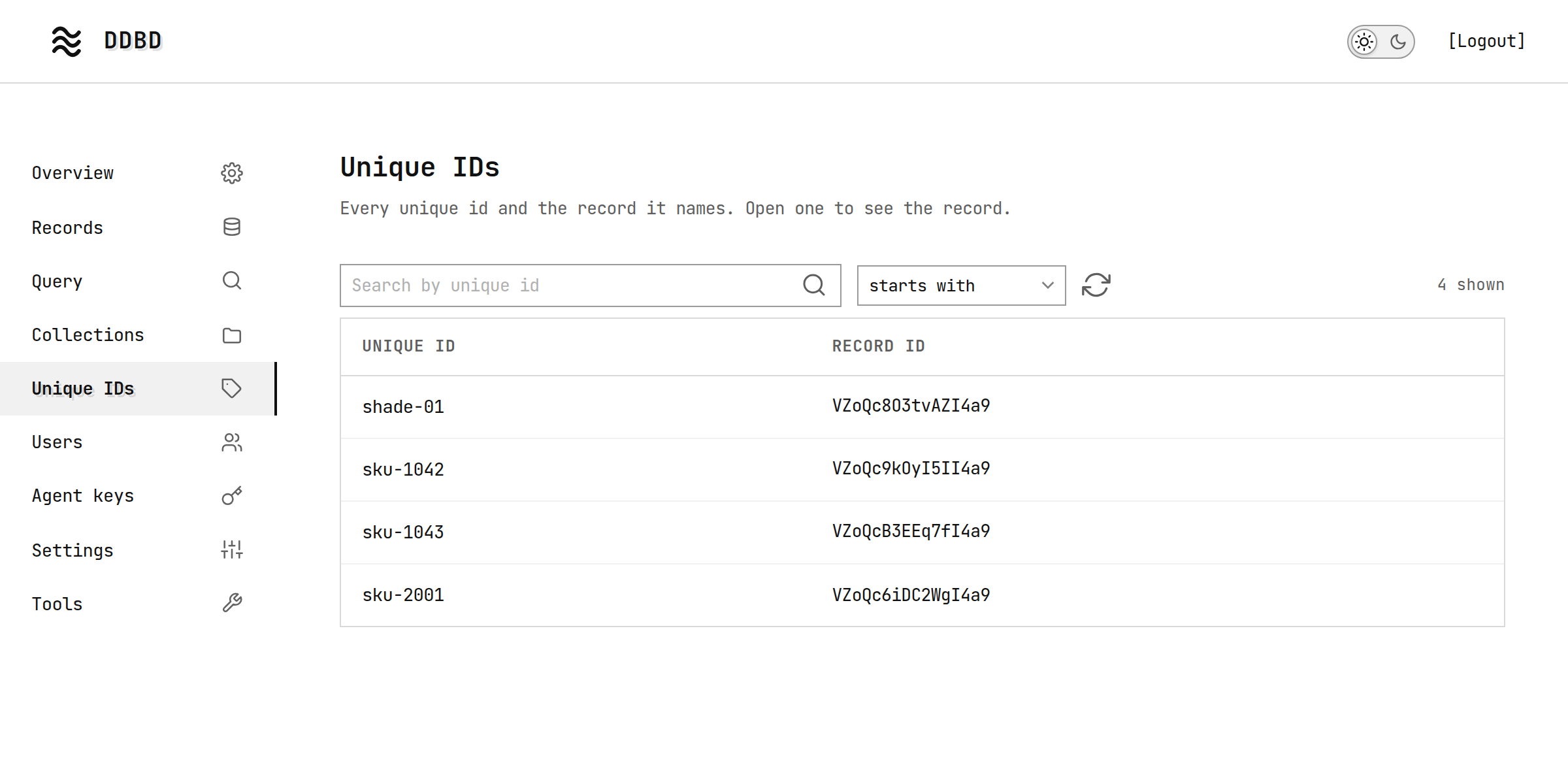
Every unique id and the record it names. Search by how an id starts or ends, or by the whole id; click one to open its record.
Users
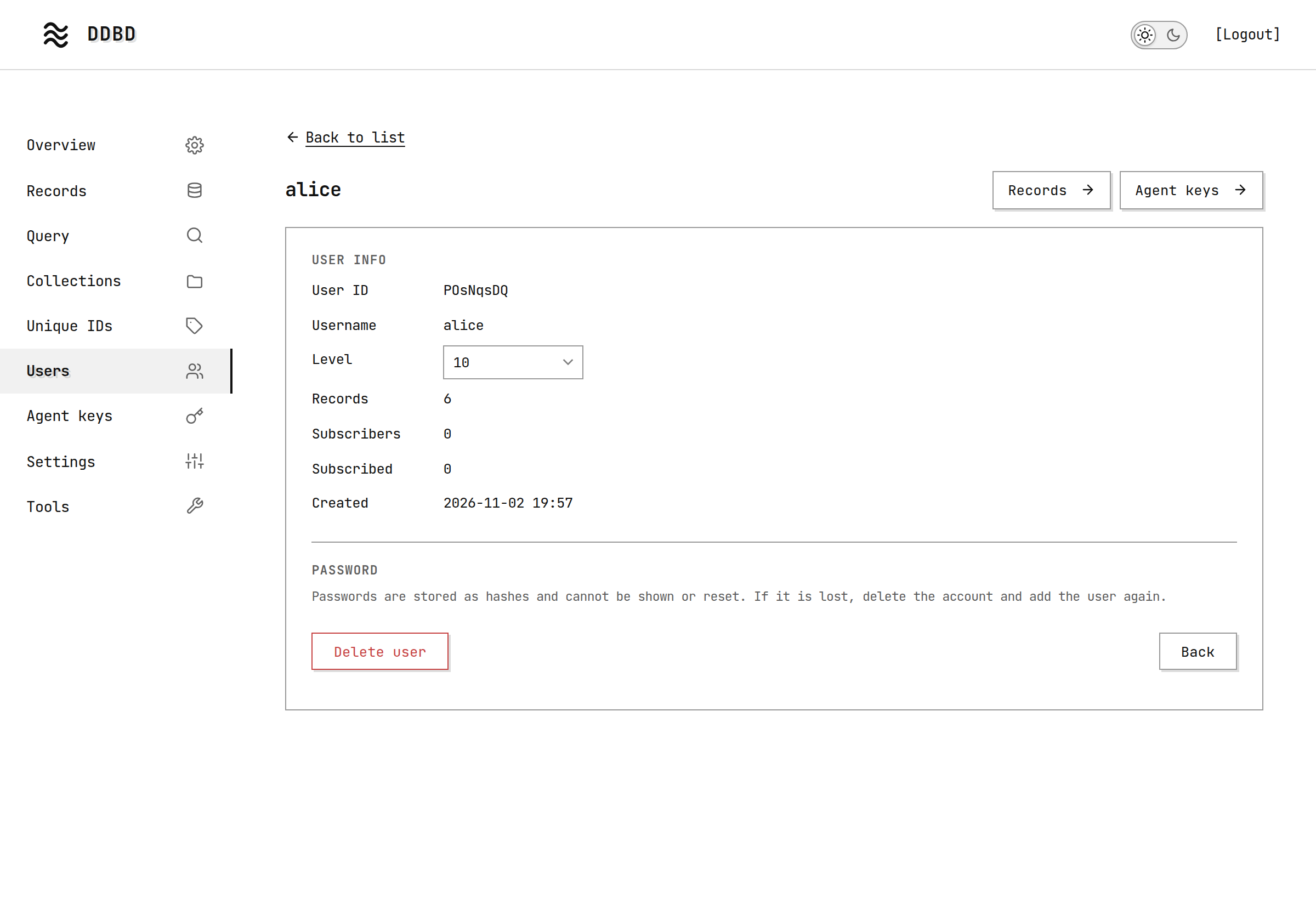
Every user, with their access level, how many records they have, their subscribers and subscriptions, and when they were added. + Add User adds one with a username, a password and an access level. There is no other way for users to get an account.
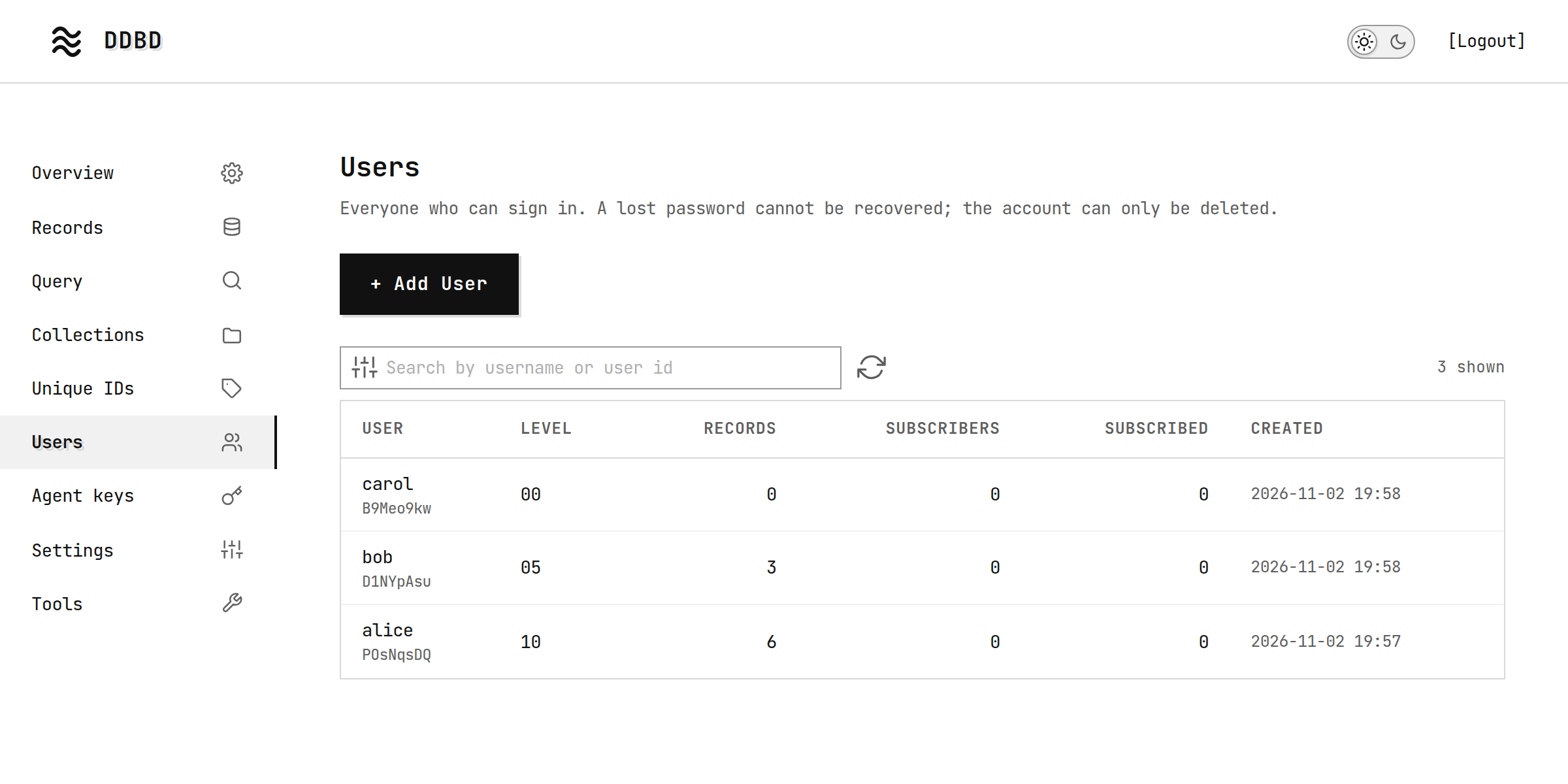
Click a user to change their access level or delete them. Records and Agent keys show what belongs to them. Passwords cannot be shown or reset: when a user loses theirs, delete the user and add them again.
Agent keys
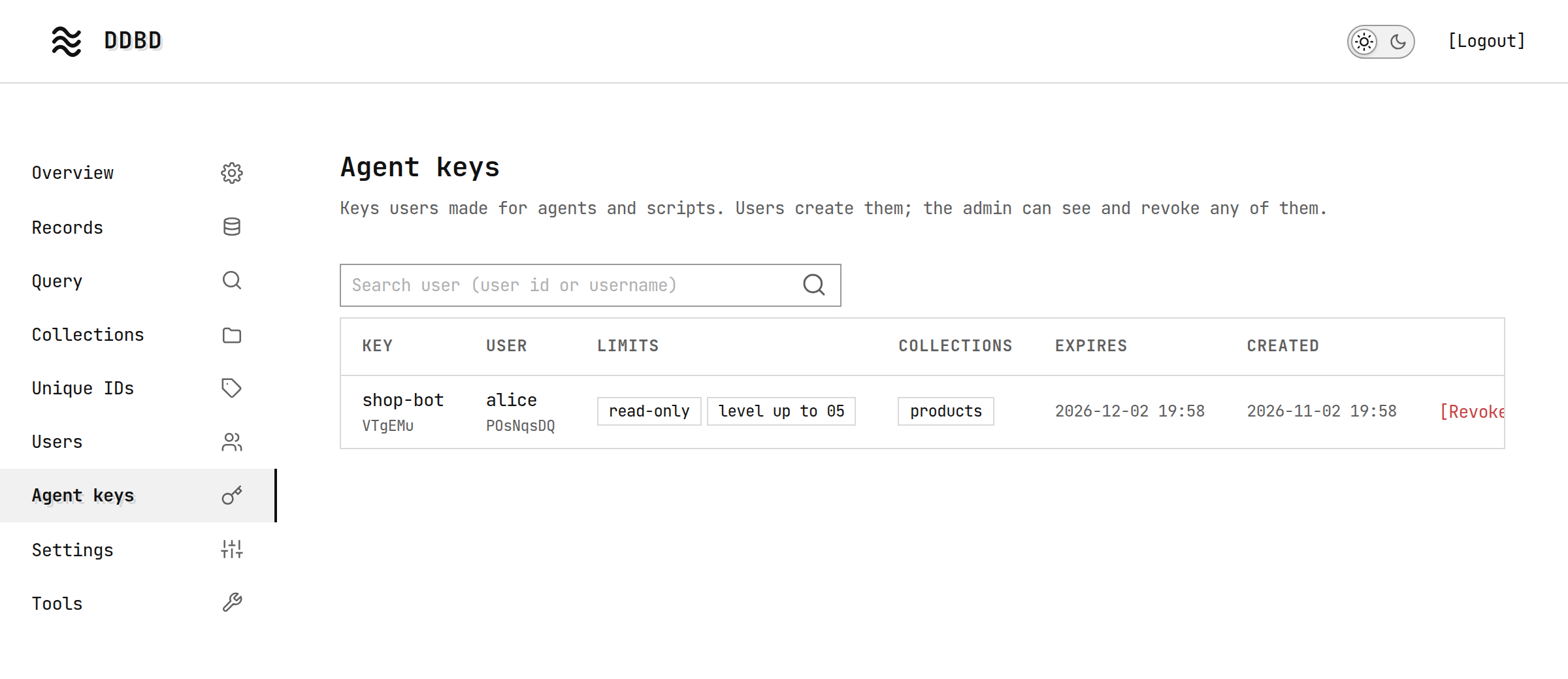
Every agent key of every user, with its limits and its expiry. [Revoke] stops a key at once.
Settings
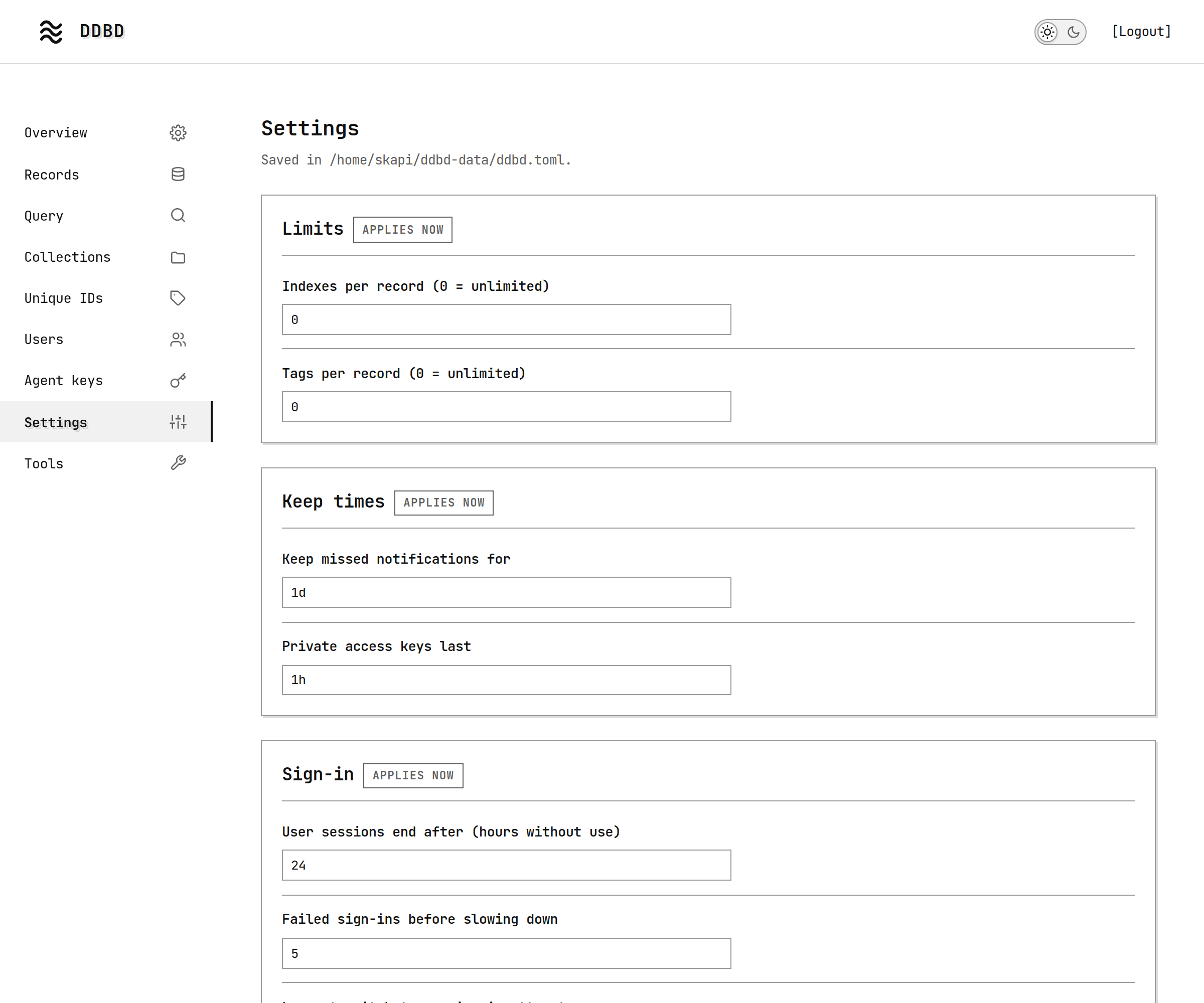
The server's settings. Cards marked applies now take effect as soon as you save; cards marked next start (network and storage) are saved and take effect when the server restarts.
Tools
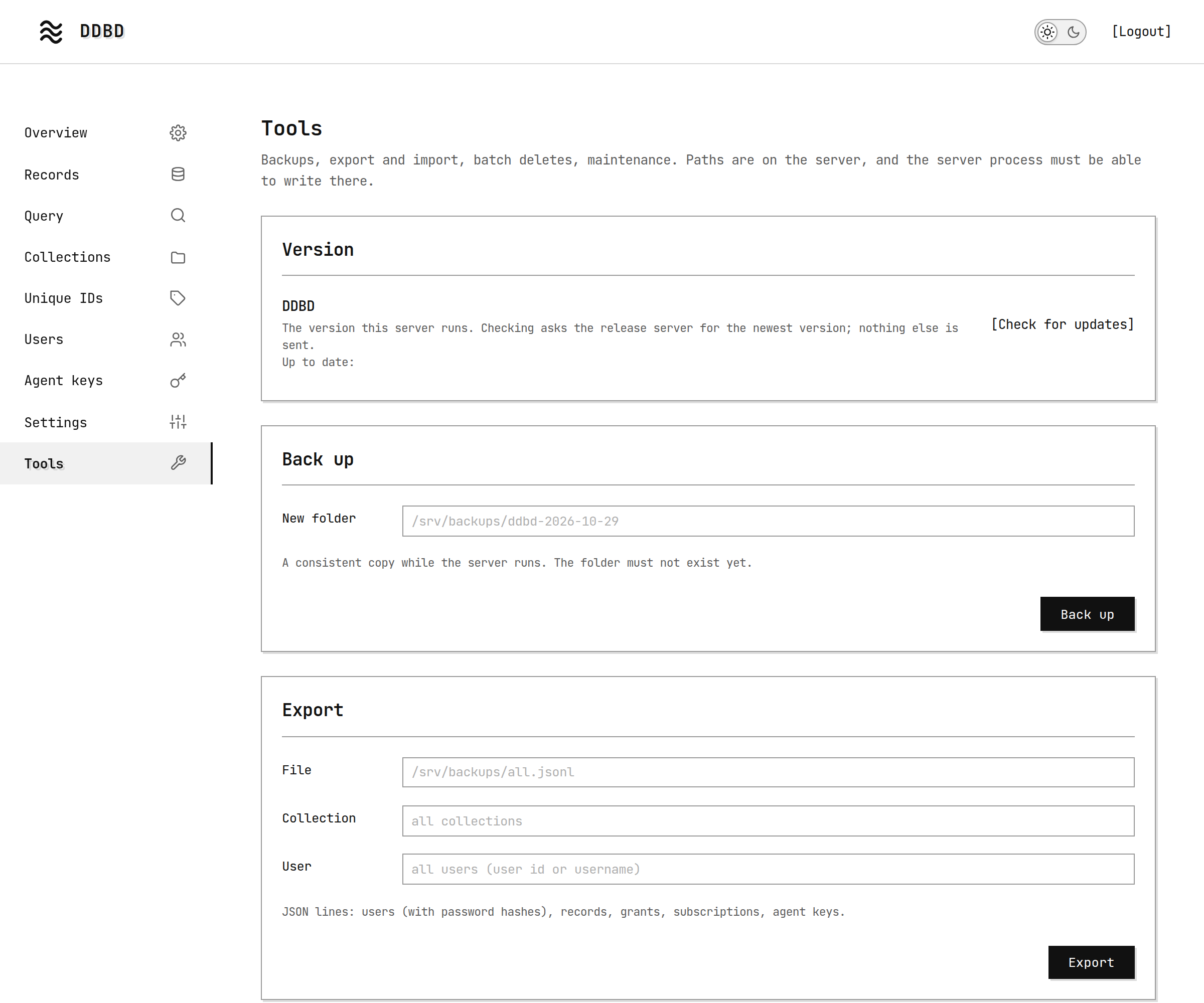
Work on the whole database:
- Version: the DDBD version this server runs. [Check for updates] asks
https://cdn.broadwayinc.com/get/ddbd/latestfor the newest release and says whether this one is up to date, or which command updates it. The Web Admin contacts that address only when you click, and sends nothing but the request. - Back up, Export and Import, to and from folders and files on the server. See Operations.
- Delete records by query, delete users in batch, or delete every record. Each asks you to type a word to confirm.
- Rotate the secret behind private access keys.
- Restart or Stop the server. After a restart the page asks you to sign in again; after a stop it shows the command that starts the server again.
Deleting here is final
Deleting records or users on the Tools screen cannot be undone. Back up first.